
Graphics
This guide provides an overview of the graphics settings available in the RPCS5 PS5 emulator, including detailed explanations and recommendations for each option.
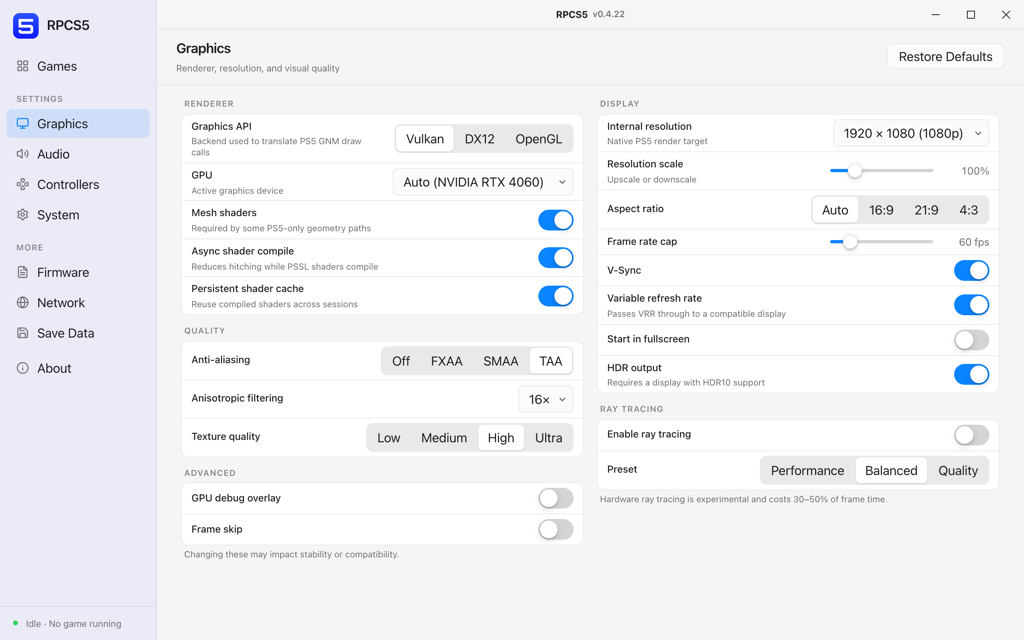
If you only change two things here, make them the graphics API and the resolution scale. The first has to be right for your platform or nothing else matters, and the second is where almost all of your frame rate goes.
Renderer
The backend decides how the PS5 GNM draw calls get translated. Everything downstream of this choice depends on it, so set it first.
- Graphics APIVulkan, Metal, DX12, OpenGL
Backend used to translate PS5 GNM draw calls.
Vulkan everywhere except macOS, where Metal is the only backend with a real driver behind it. OpenGL exists as a fallback for hardware that cannot do the other three and it is slower in every case.
- GPU
Active graphics device.
Auto picks the most capable adapter it can see. On a laptop with switchable graphics, set this explicitly rather than trusting it to avoid the integrated chip.
- Mesh shadersOn / off
Required by some PS5-only geometry paths.
Leave it on. Turning it off is a diagnostic step for a specific class of geometry corruption, not a performance setting.
- Async shader compileOn / off
Reduces hitching while PSSL shaders compile.
On. The cost is occasional missing geometry in the first seconds of a new area, which is a far better trade than a full stall on every new shader.
- Persistent shader cacheOn / off
Reuse compiled shaders across sessions.
On. The first hour in a game is rough and every hour after that is smooth. Budget up to 8 GB of disk for it.
Quality
- Anti-aliasingOff, FXAA, SMAA, TAA
Edge smoothing method.
TAA if you are rendering at or below your display resolution, SMAA if you are supersampling and TAA is smearing motion. FXAA is cheap and soft.
- Anisotropic filtering2x to 16x
Sharpens textures viewed at a shallow angle.
16x. It has been effectively free on every GPU generation since Pascal.
- Texture qualityLow, Medium, High, Ultra
Resolution textures are streamed and sampled at.
High on 8 GB of VRAM, Ultra above that. This is the first setting to drop if you are seeing streaming stutter rather than a low frame rate.
Display
- Internal resolutionUp to 3840 x 2160
Native PS5 render target.
Leave at the console native target and use resolution scale to move away from it. Changing the render target itself breaks the assumptions some games make about buffer sizes.
- Resolution scale50% to 200%
Upscale or downscale relative to the internal resolution.
The single largest lever on frame rate. Cost rises roughly with the square of the value, so 150% is not one and a half times as expensive, it is more than twice.
- Aspect ratioAuto, 16:9, 21:9, 4:3
Output aspect.
Auto. Forcing 21:9 on a game that was authored for 16:9 usually crops the vertical field of view rather than widening it.
- Frame rate capUp to 240 fps
Upper limit on presented frames.
Match your display refresh. An uncapped frame rate makes some physics and animation systems run fast, and PS5 titles are not always defensive about it.
- V-SyncOn / off
Synchronises presentation to the display refresh.
On, unless you are chasing input latency and can tolerate tearing. Redundant if variable refresh rate is doing its job.
- Variable refresh rateOn / off
Passes VRR through to a compatible display.
On with a FreeSync or G-Sync display. It is the cleanest fix for a frame rate that sits between two refresh multiples.
- Start in fullscreenOn / off
Launches games fullscreen.
- HDR outputOn / off
Requires a display with HDR10 support.
Only worth enabling on a display that actually reaches a useful peak brightness. On a 400-nit panel it mostly washes the image out.
Ray tracing
- Enable ray tracingOn / off
Hardware-accelerated reflections and shadows.
- PresetPerformance, Balanced, Quality
Ray count and resolution of the traced passes.
Hardware ray tracing is experimental and costs 30 to 50 per cent of frame time. Treat it as something to try once a game is already running comfortably.
Advanced
- GPU debug overlayOn / off
Draws pipeline statistics over the game.
- Frame skipOn / off
Drops presented frames to keep the simulation on schedule.
Off. It trades visible stutter for a nominally higher frame counter and rarely feels better.
Changing these may impact stability or compatibility.