
Controllers
This guide outlines the input setup options available in the RPCS5 PS5 emulator, explaining each section and the button mapping process.
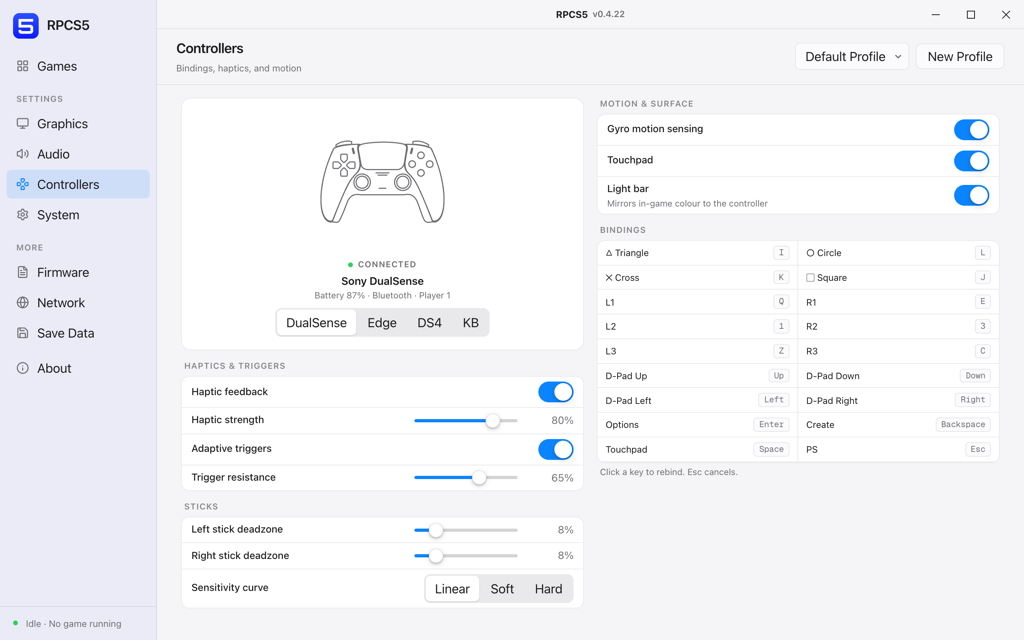
Connecting a pad
Plug the controller in or pair it over Bluetooth before opening this panel. A detected device appears with its model, battery level, connection type and player slot. The four tabs underneath, DualSense, Edge, DS4 and KB, select which binding set the emulator presents to the game. Pick the one that matches what is in your hands.
Profiles sit at the top right. Anything you change lands in the selected profile, so make a new one before you start experimenting rather than after.
Haptics and triggers
These only do anything on a DualSense. A DS4 or an Xbox pad reports the toggles but ignores them.
- Haptic feedbackOn / off
Drives the voice-coil actuators.
- Haptic strength0% to 100%
Scales haptic amplitude.
- Adaptive triggersOn / off
Applies the resistance curves a game requests on L2 and R2.
- Trigger resistance0% to 100%
Scales the requested resistance.
Worth dropping to about half if you are playing a shooter for more than an hour at a time.
Sticks
- Left stick deadzone0% to 30%
Ignores stick movement below this threshold.
Raise it only far enough to stop drift. Every point of deadzone is precision you are throwing away.
- Right stick deadzone0% to 30%
Same, for the camera stick.
- Sensitivity curveLinear, Soft, Hard
Maps physical stick position to reported position.
Linear matches what the game was tuned against. Soft gives finer control near the centre, which helps for aiming and hurts for driving.
Motion and surface
- Gyro motion sensingOn / off
Forwards the controller gyroscope.
On. Several PS5 titles use gyro for fine aim adjustment and simply feel wrong without it.
- TouchpadOn / off
Forwards touch and click on the pad.
- Light barOn / off
Mirrors in-game colour to the controller.
Keyboard bindings
The defaults for the KB profile. Click any key in the panel to rebind it, or press Escape to cancel out of a capture you started by accident.
| Button | Key |
|---|---|
| Triangle | I |
| Circle | L |
| Cross | K |
| Square | J |
| L1 | Q |
| R1 | E |
| L2 | 1 |
| R2 | 3 |
| L3 | Z |
| R3 | C |
| D-Pad Up | Up |
| D-Pad Down | Down |
| D-Pad Left | Left |
| D-Pad Right | Right |
| Options | Enter |
| Create | Backspace |
| Touchpad | Space |
| PS | Esc |