
Getting Started with RPCS5
Welcome to the getting started guide for the RPCS5 PlayStation 5 Emulator. This tutorial gives you a step-by-step introduction to the installation and usage of the emulator on your computer. We encourage you to visit this page often for the latest information as enhancements and improvements are made. Enjoy your gaming with RPCS5!
What is RPCS5?
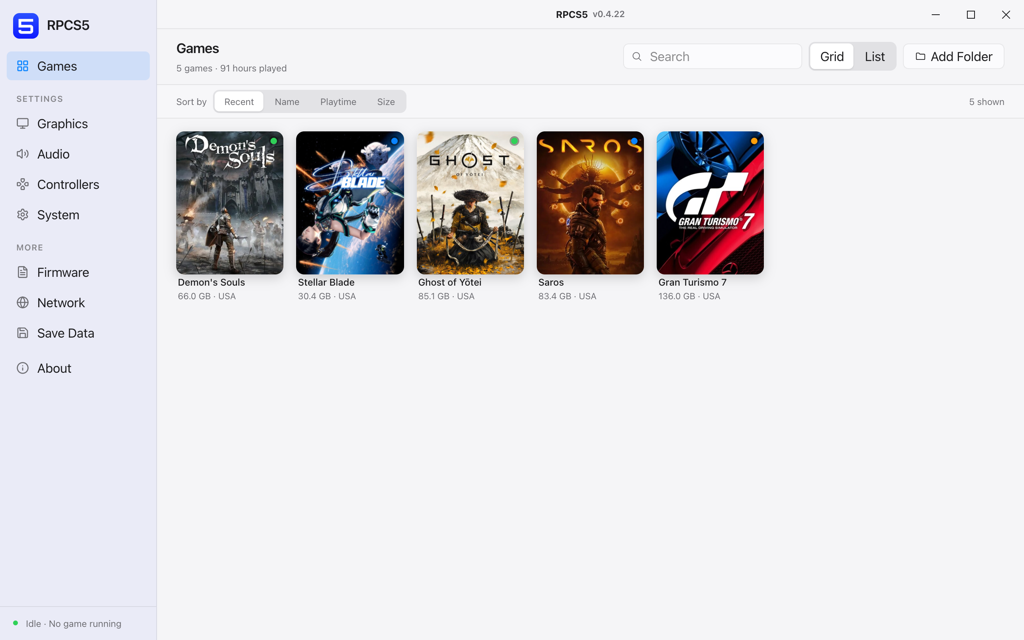
RPCS5 is an open-source emulator and debugger for the PlayStation 5, enabling users to play PS5 games on their PC. It offers an optimized gaming experience that can be tailored to various hardware configurations and user preferences.
Core Features
- Mods Support
- Easily integrate mods to expand content, resolve issues, or enhance graphics, breathing new life into older titles.
- Centralized Game Library
- Consolidate your game collection from various platforms onto a single PC, streamlining your gaming setup.
- Versatile Controller Support
- Play with various controllers, including Xbox controllers, custom peripherals, or even mouse and keyboard.
- Improved Graphics and Performance
- Experience games with higher resolutions, uncapped frame rates, and potentially enhanced textures.
- Integrated Recording and Streaming
- Capture and share your gameplay directly to platforms like Twitch or YouTube, perfect for content creators.
- Flexible Gameplay Options
- Utilize save states and cheat codes for a more customizable gaming experience.
Setup Guide
Obtain RPCS5
Download the latest version of RPCS5 from the official website.
Unpack the Emulator
Extract the downloaded files to your preferred location.
Install Required Components
Make sure you have the latest GPU drivers, necessary runtime libraries, and PS5 System Software (firmware) installed. Firmware is installed from the Firmware section in the sidebar.
Adjust Settings
Launch RPCS5 and configure the graphics, audio, and general settings to your liking. Each settings panel is documented on its own page in this guide.
Add Games
Insert your original PS5 disc into your Blu-ray drive, or use Add Folder in the Library to point the emulator at your PS5 game files, to start playing.
Updating and Installing PS5 System Software
To install the PlayStation 5 system software, use the built-in firmware installer in the Firmware section of the sidebar. Choose Install firmware, then Browse, and select a PS5UPDATE.PUP file. Once it has worked, the panel reports the system software as Verified and the decryption keys as Present. To update the system software or install a custom firmware, repeat these steps to overwrite any existing firmware files.
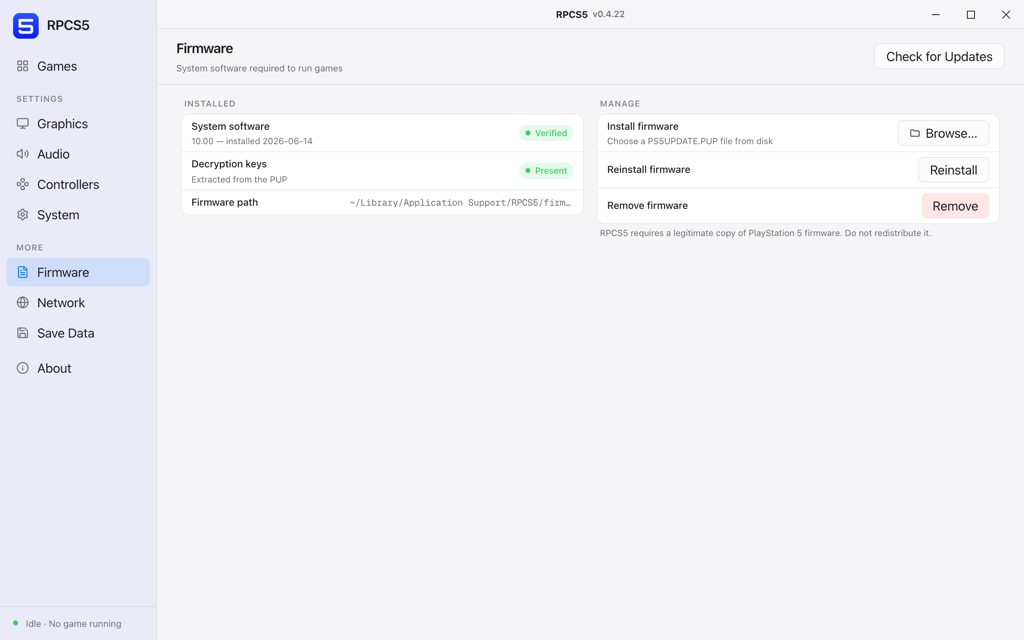
RPCS5 requires a legitimate copy of PlayStation 5 firmware. Do not redistribute it. Only original PlayStation 5 disks can be used, with a compatible Blu-ray disc drive.
Managing Save Data
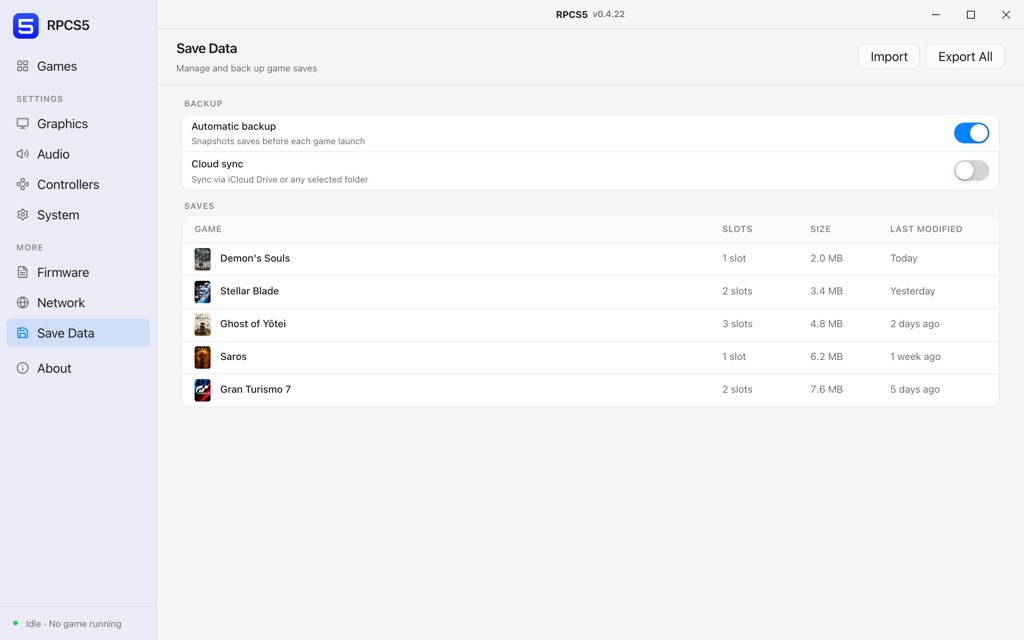
The Save Data panel lists what each installed game has written, with slot counts and sizes, and can back the whole set up automatically. The Import and Export All buttons are the route for moving saves between machines.
Save data can also be transferred from a real PlayStation 5 using a USB flash drive. Some saves need to be re-signed first, as the PlayStation 5 has a user account system. That feature is not part of this panel yet.
Configuring RPCS5
Four settings panels are worth a proper read. Each page below documents every control in that panel, with a screenshot of the current build.
Community and Assistance
If you need help or want to connect with other RPCS5 users, consider these resources:
- Official Guides
- Detailed documentation and FAQs on the RPCS5 website.
- User Forums
- Engage with the RPCS5 community forums (coming soon) to discuss issues, share tips, and interact with fellow users.
- Discord Channel
- Join the RPCS5 Discord server for instant support and community discussions.
- Social Media Presence
- Stay updated by following RPCS5 on various social media platforms.